
Kettle
Kettle
1. Overview
Kettle (full name Pentaho Data Integration, referred to as PDI) is an open-source ETL (Extract, Transform, Load) tool designed for data integration, data cleansing, data migration, and data analysis. It simplifies complex data processing workflows through a visual interface and is widely used in data warehouse construction, business intelligence (BI), and big data scenarios.
2. Prerequisites
To connect IoTDB with PDI, the following preparations are required:
IoTDB >= V2.0.5.1, which has been deployed and is running normally.
PDI has been downloaded and installed, and is running normally.
3. Connect IoTDB with PDI
Start the IoTDB service
Download the JDBC driver and add it to the lib directory under the PDI installation folder
- Click the following URLs Download Address 1 or Download Address 2, select the corresponding version of the Jar package, and download the package with the suffix jar-with-dependencies.jar
Start the PDI service and configure the database connection
Create a new transformation
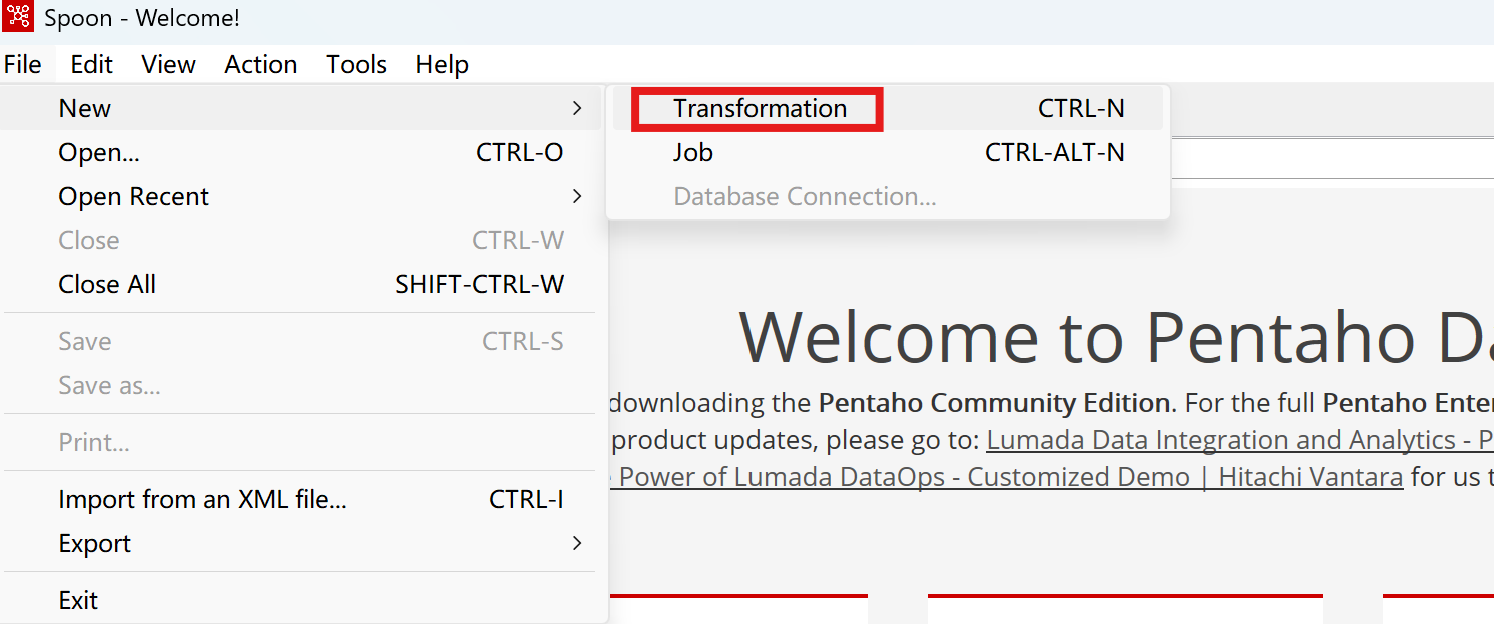
Create a new database connection
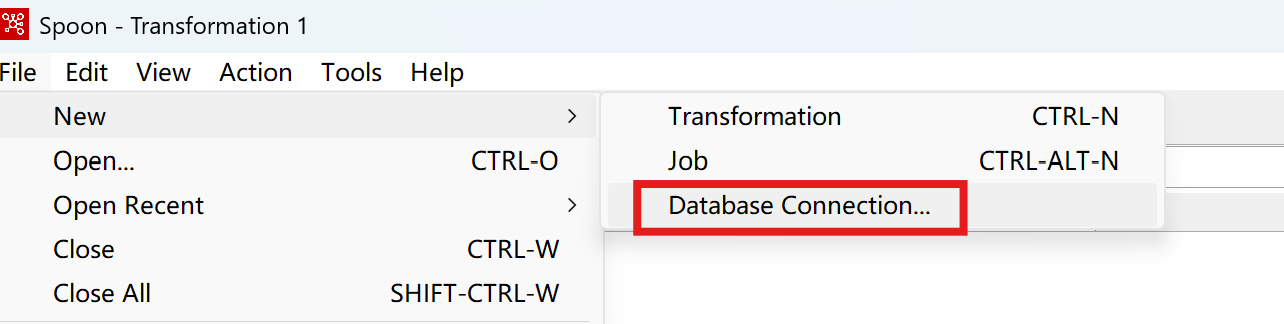
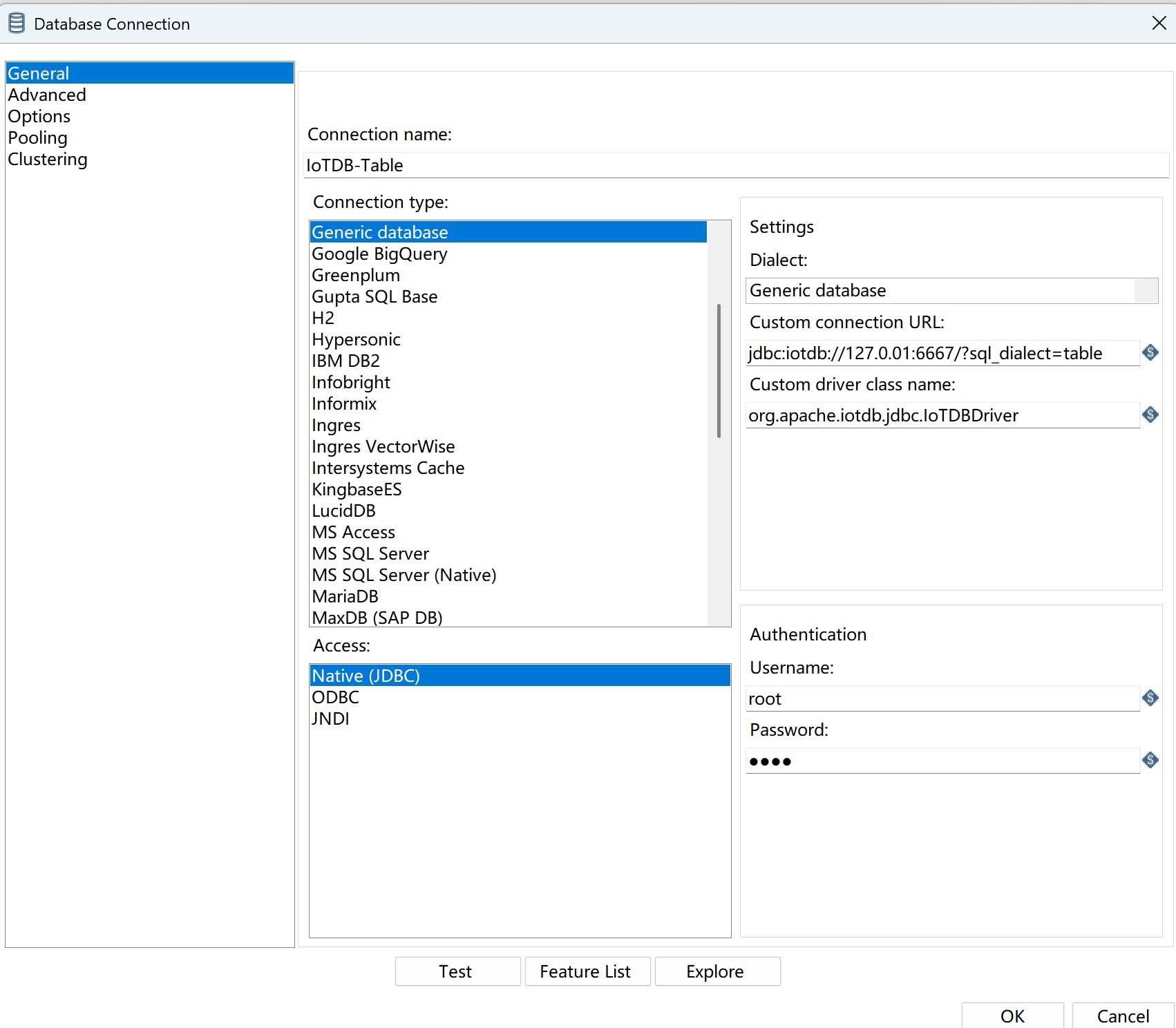
Edit the database connection
Test the connection
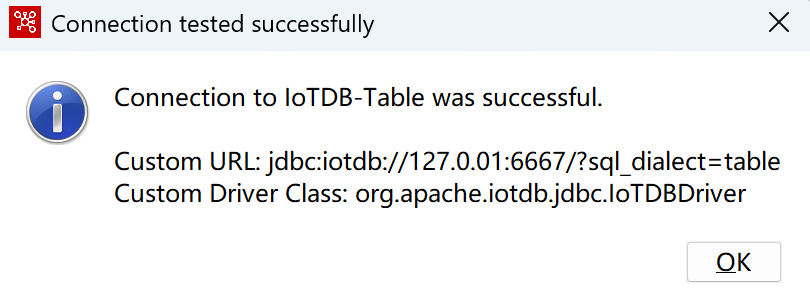
You can now use IoTDB through PDI
4. Usage Steps
To insert data, you need to use Execute SQL Script. The following steps simulate inserting data into IoTDB using PDI with JSON input.
Add JSON input, clickInputin theCore Objectson the left, selectJSON input, and drag it into the transformation on the right.
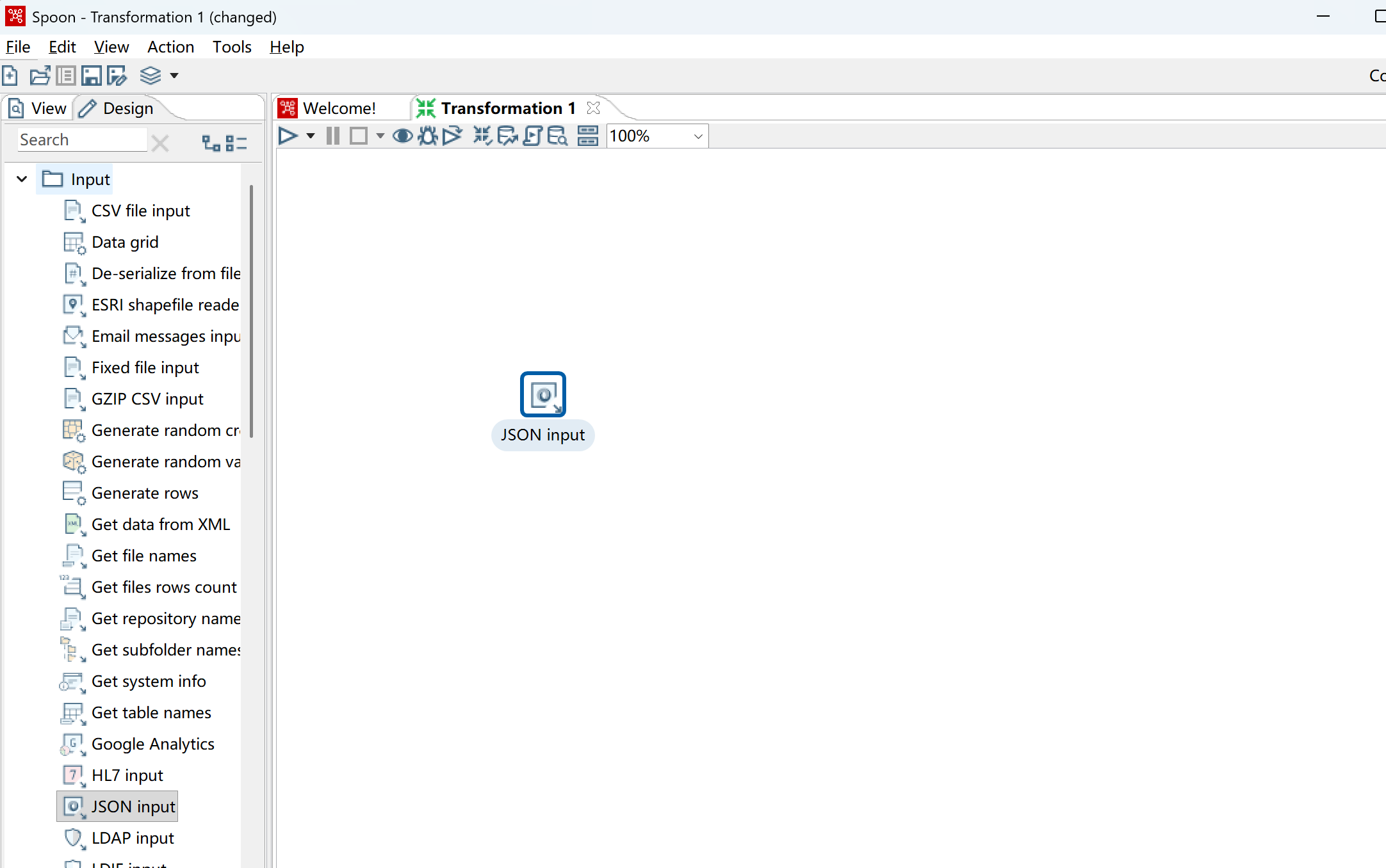
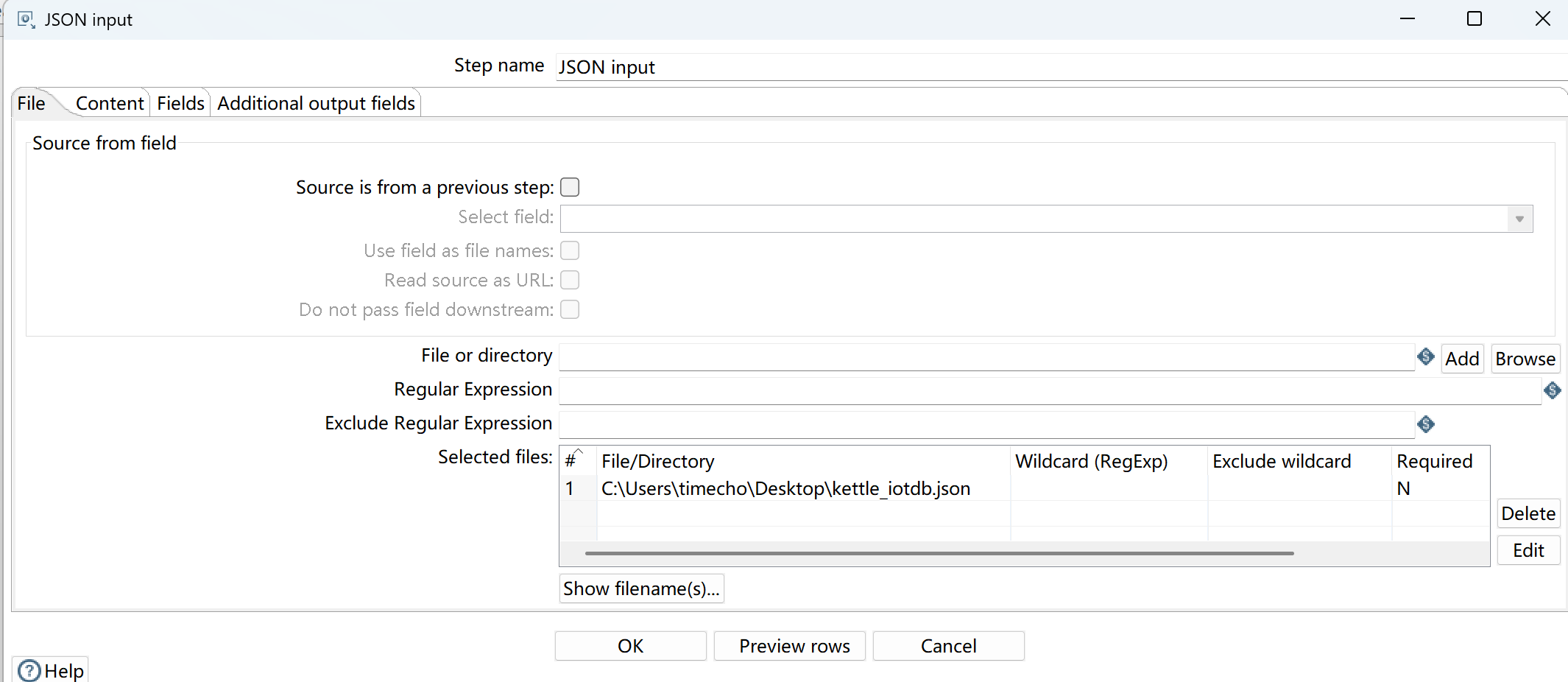
- Double-click the dragged JSON input and add the JSON file. In the
Filestab -File or directoryfield, fill in the path of the JSON file and clickAdd.
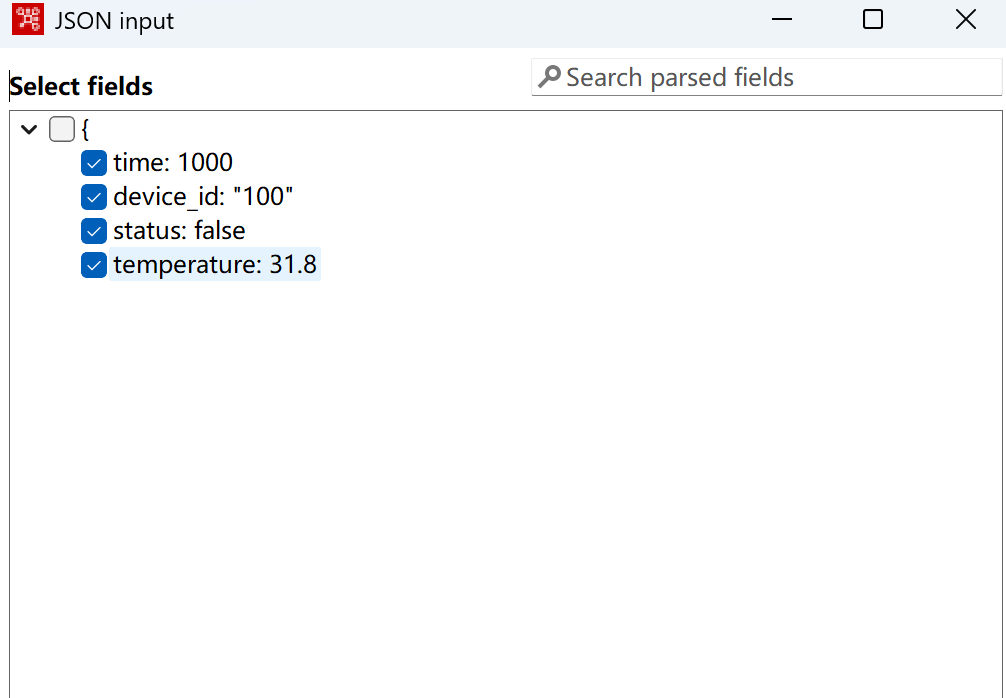
- Click
Select fieldsin theFieldstab and select the rows to import.
- Adjust the data types appropriately according to the field requirements of the target database. For example, replace Boolean type with Binary, and Float type with Number.
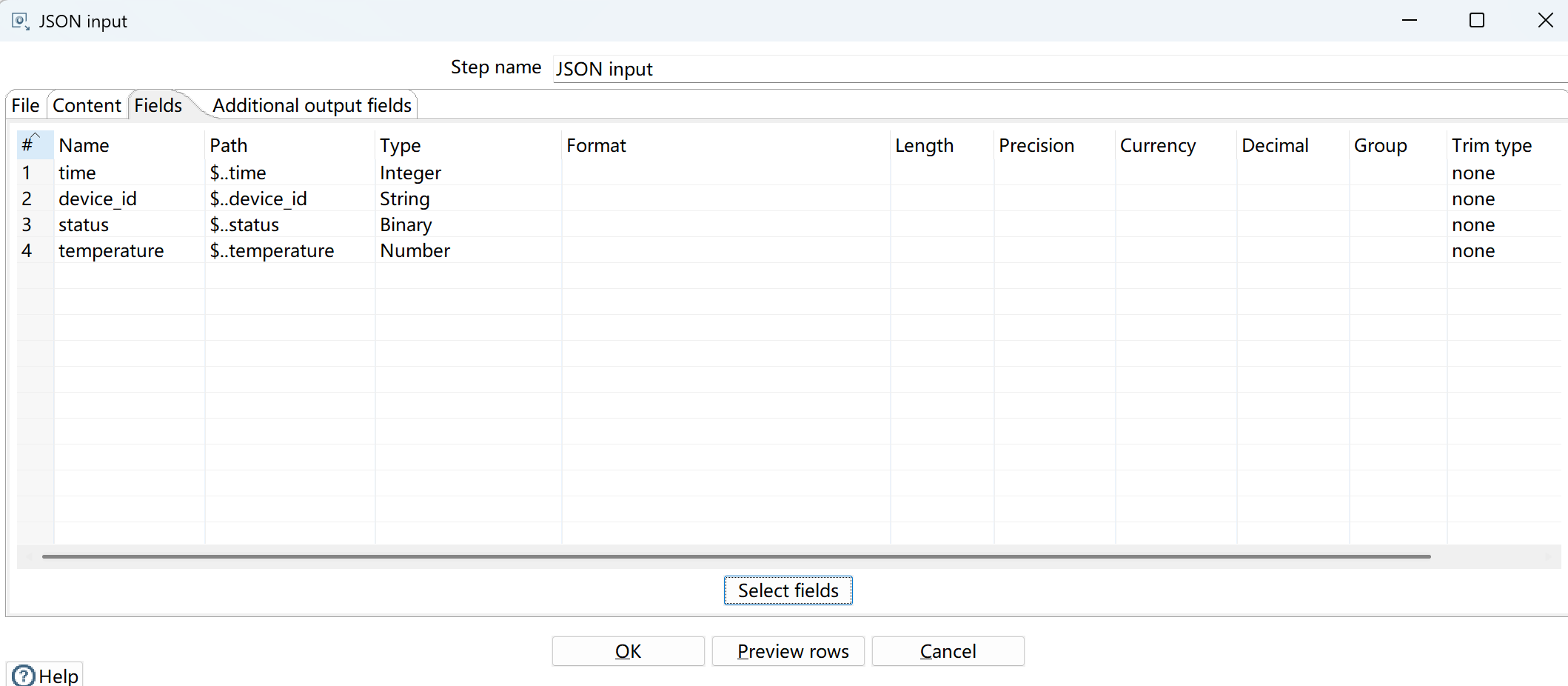
- Add
Execute SQL Script, clickScriptin the core objects on the left, selectExecute SQL Script, and drag it into the transformation on the right.
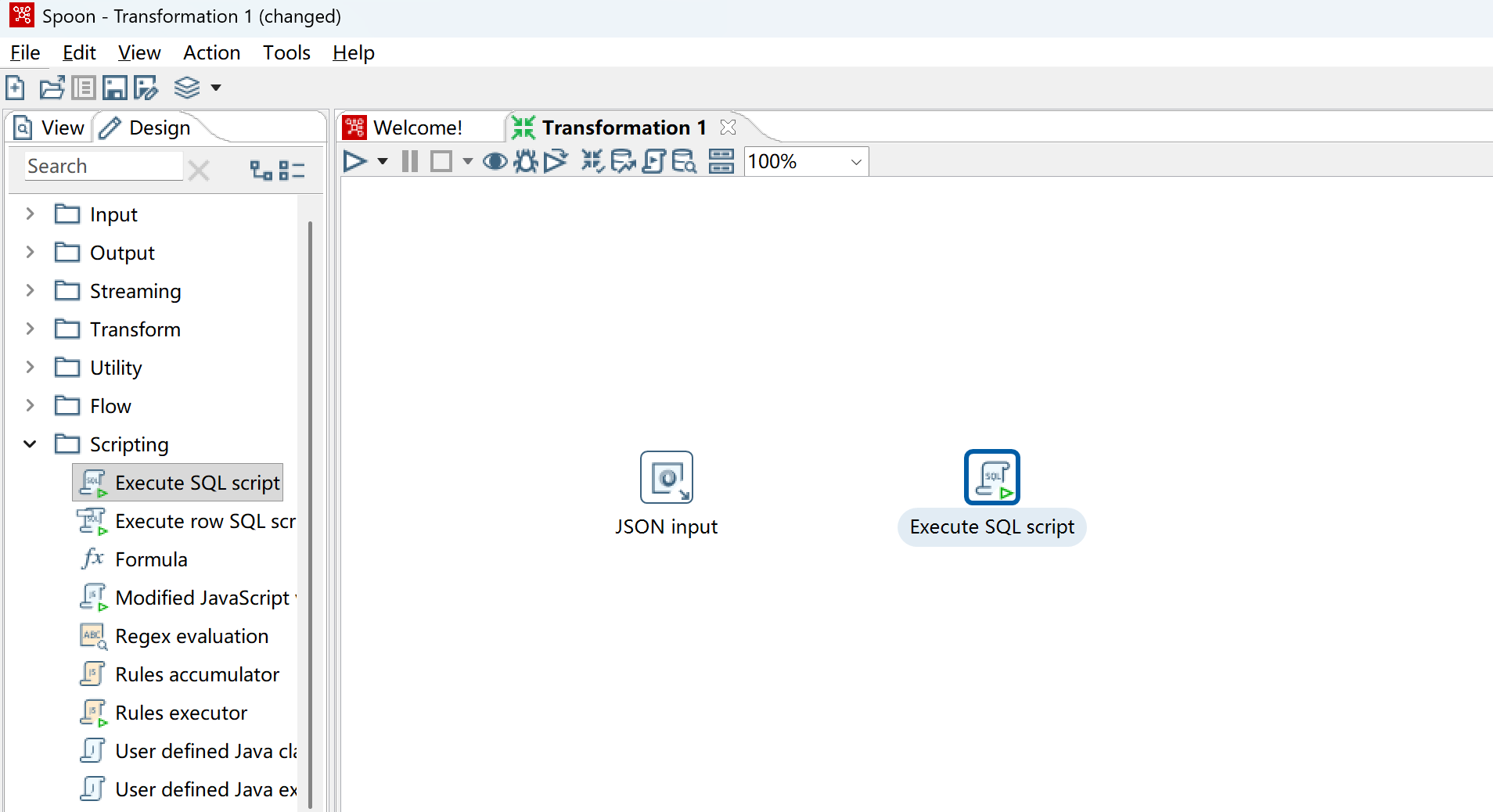
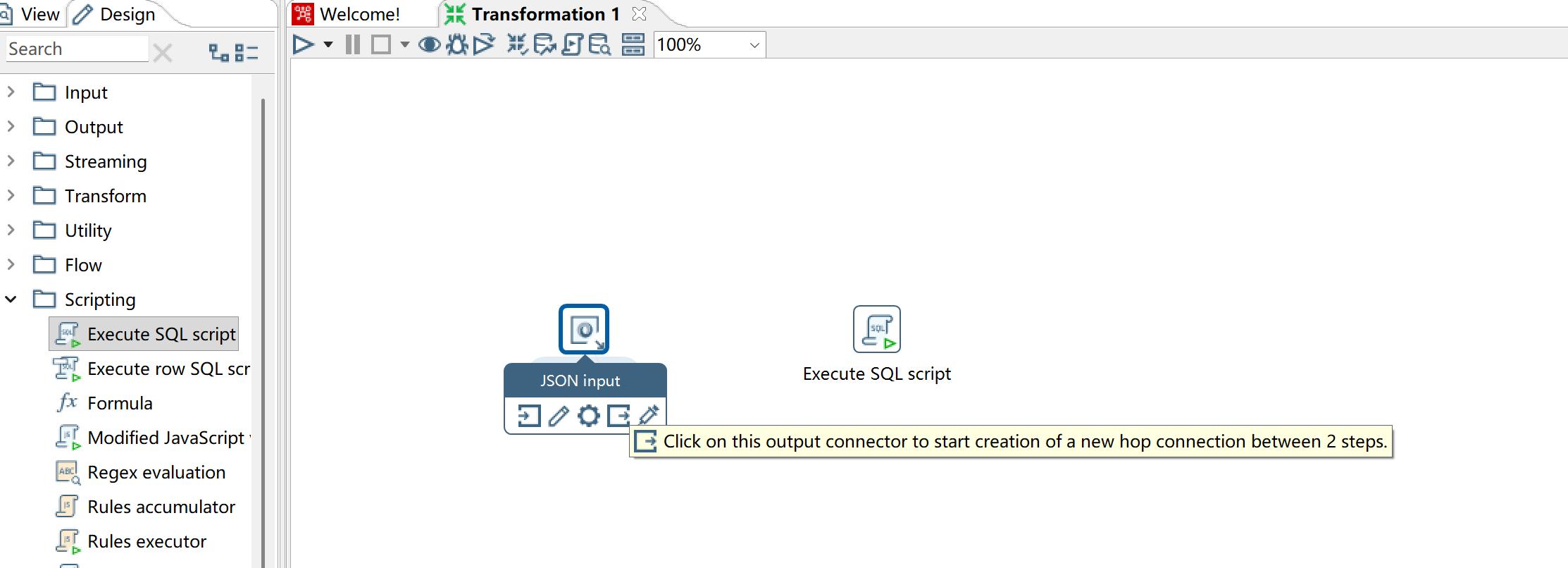
- Hover the mouse over JSON input, select
the fourth icon, click and point to Execute SQL Script, and selectMain output step.
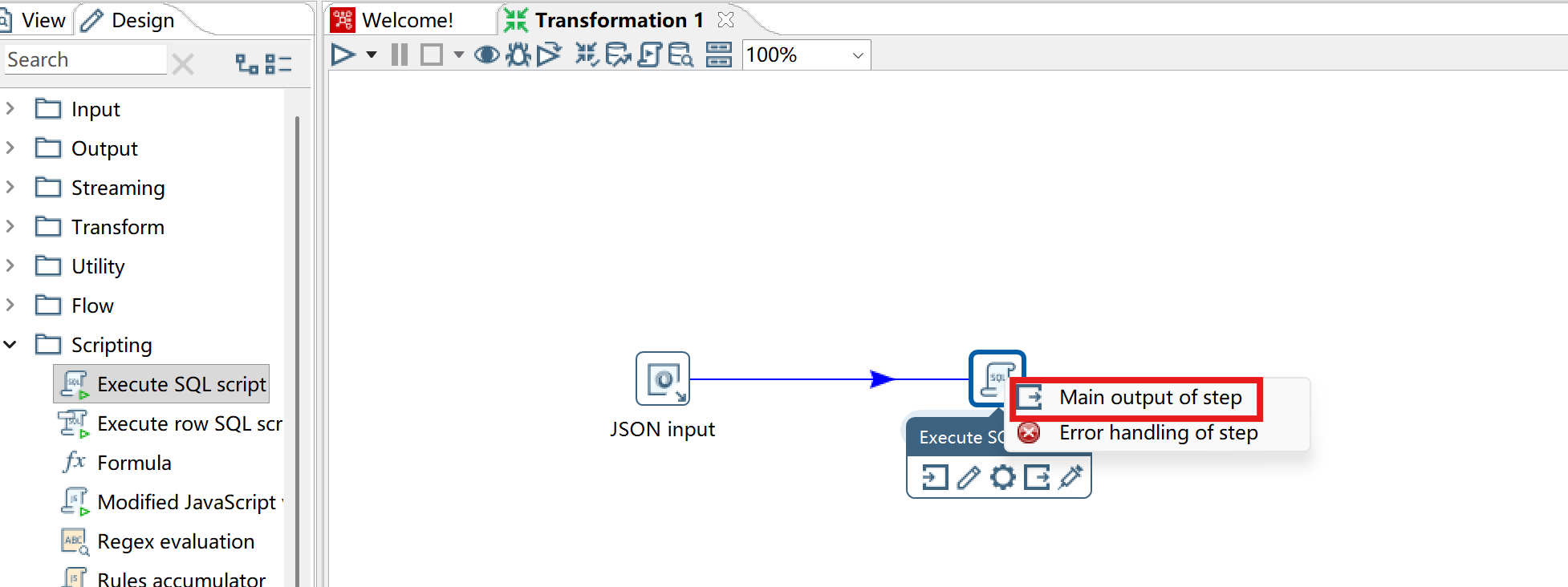
- Double-click
Execute SQL Scriptand add SQL statements, check Execute for each row, and click Get fields.
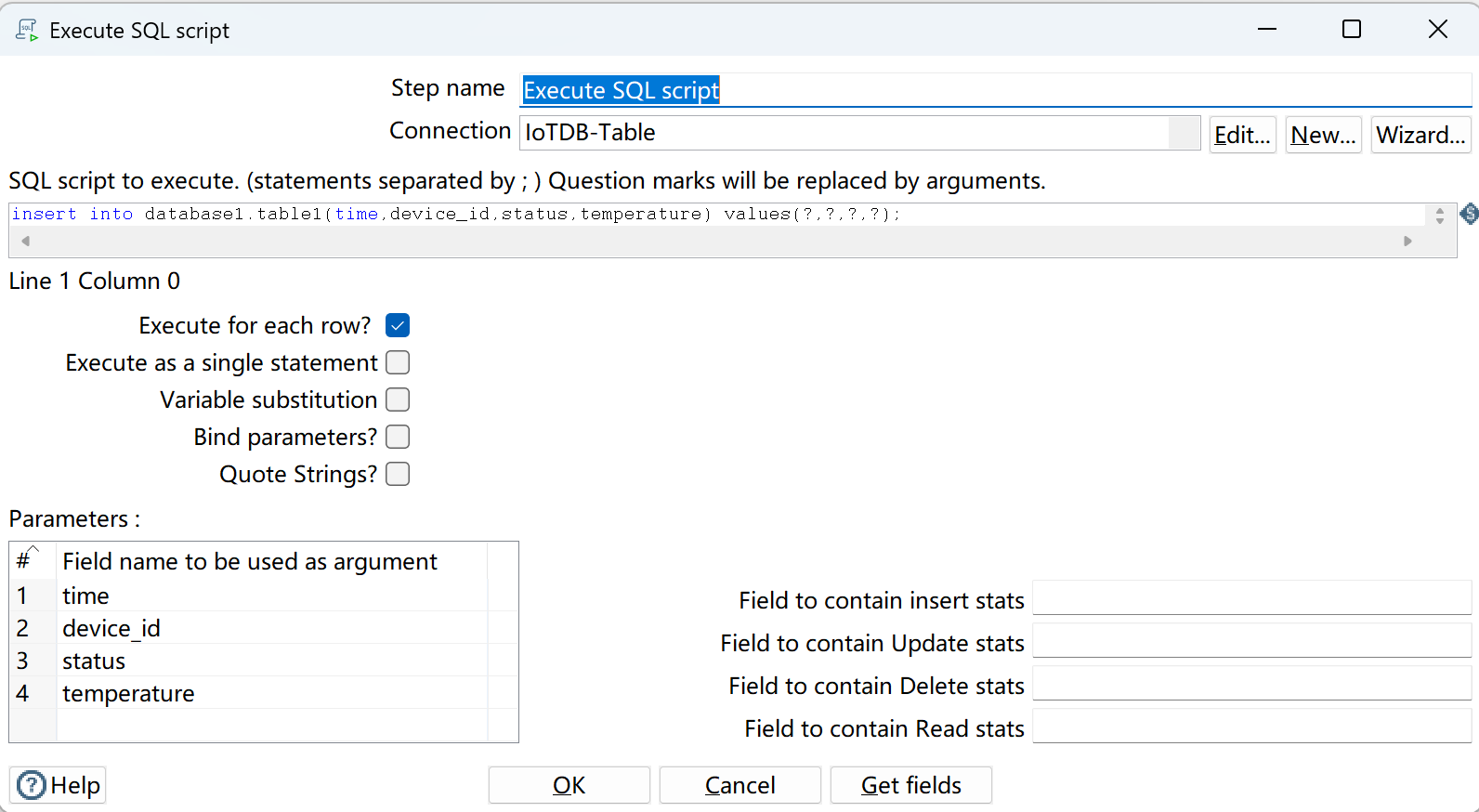
- Select JSON input and Execute SQL Script, then click
Runor pressshortcut key F9.
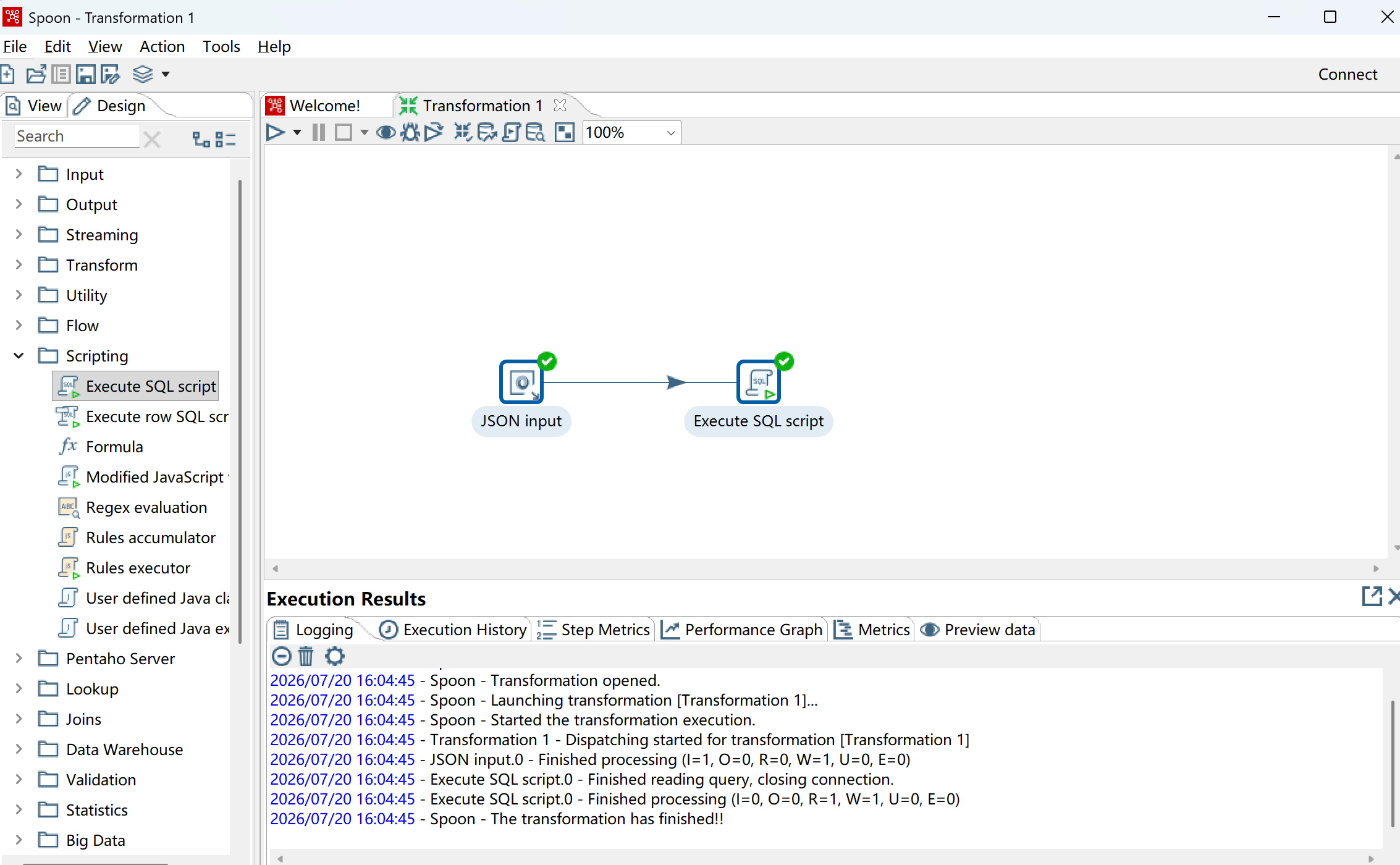
- Verify the write result through
IoTDB Cli
IoTDB:database1> select * from table1
+-----------------------------+------+--------+---------+--------+-----------+-----------+--------+------+------------+
|                         time|region|plant_id|device_id|model_id|maintenance|temperature|humidity|status|arrival_time|
+-----------------------------+------+--------+---------+--------+-----------+-----------+--------+------+------------+
|1970-01-01T08:00:01.000+08:00|  null|    null|      100|    null|       null|       31.8|    null| false|        null|
+-----------------------------+------+--------+---------+--------+-----------+-----------+--------+------+------------+
Total line number = 1
It costs 0.189s